iPhone / iPad: $2.99 one-time on the App Store · Free on Mac, Windows, Android, and Linux

See the two pricing options →
Official site and manual · Get / Configure / Verify

Shadowrocket GuideAll platforms. Your rules.

A cross-platform proxy client with rule-based routing. Set up connections using your existing subscription or server details; Global Routing and routing rules determine how requests are handled.

Current version v2.2.92 · iPhone / iPad: $2.99 one-time on the App Store; free on Mac, Windows, Android, and Linux

First-time setup: start with an existing subscription →
Global RoutingSubscribeOn Demand
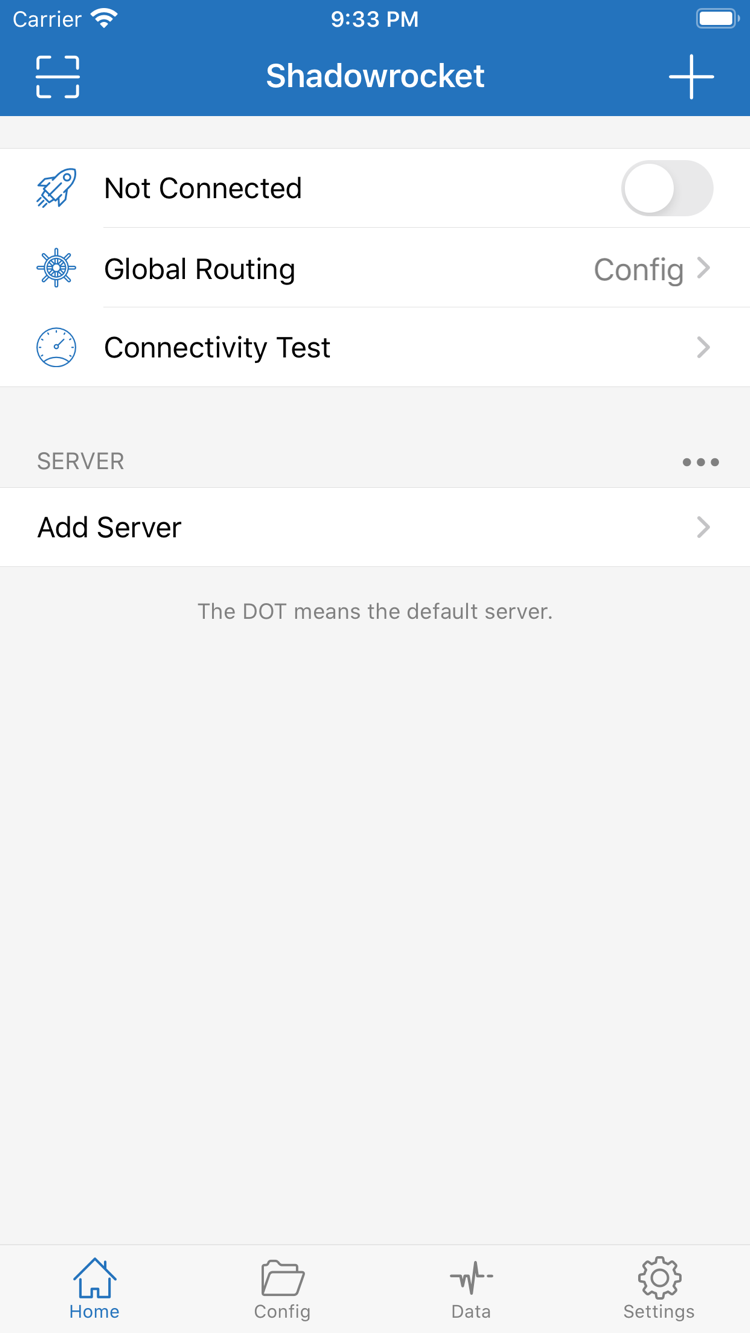
Official Shadowrocket Home screenshot with the connection switch, Global Routing, and server list
  • 06 device categories
  • 02 ways to get the app
  • Config / Proxy / Direct
  • 932747118 App Store app ID
Setup and use

Distinguish connection details, routing modes, and rules

Server details determine where to connect, Global Routing determines how requests are handled, and rules in Config are matched individually. Browse the features below by task. The interface examples use iPhone / iPad; see the official manual for complete steps.

Global Routing: Config, proxy, and direct connections

Open Global Routing from Home and choose Config, Proxy, or Direct for the task. Config processes requests using the rules in the current configuration file; Proxy sends applicable traffic through the selected proxy; Direct connects without a proxy. Use Config for everyday domain-based routing. Switch to Proxy temporarily to check a proxy connection, then restore the previous mode. Rules are usually matched in order, so a broad rule earlier in the list may take precedence over a more specific one. When troubleshooting, also check rule order and the final destination set by FINAL.

DOMAIN-SUFFIX,example.com,PROXY

For a first setup, follow this order: “Import details → Select a server → Select Global Routing → Connect → Verify access.” When only one part changes at a time, results are easier to compare. Changing the server, configuration file, and DNS settings together makes it harder to identify the cause of a problem.

A connected status means the system connection state has changed; it does not mean every rule is behaving as expected. If only some targets fail, note the target, current mode, and matched rule, then check the relevant rule instead of deleting all your data first.

Read the full manual →
Two ways to get the app

Open the download guide for your device

The iPhone / iPad app costs $2.99 one-time on the App Store, with one purchase shared by both devices. The Mac, Windows, Android, and Linux versions are free. Desktop and Android installers are provided through this site's /dl/shadowrocket/ path. Use the device links below to open the download guide and check the architecture and system permission steps.

iPhone / iPad

$2.99 one-time on the App Store; free on other platforms.

Check the App Store listing, then use your own Apple ID to purchase and download. System requirements are as listed on the App Store page; the displayed local-currency price may vary by storefront. If you have already purchased the app, check your purchased items first; reinstalling does not require a new purchase.

Mac

Free · Apple Silicon / Intel; iPhone / iPad: $2.99 one-time on the App Store.

Check the chip or processor in About This Mac, then choose the matching installer. If you see “unverified developer,” follow the download guide to select “Open Anyway” under Privacy & Security in System Settings. If you see “damaged,” read the installation approval section and follow the listed steps.

Windows

Free; iPhone / iPad: $2.99 one-time on the App Store.

The download guide provides a 64-bit Windows installer. If SmartScreen appears on first launch, confirm the file came from this site's download page, then select “More info → Run anyway.” Follow system prompts to grant connection-related permissions after installation. Do not confuse system approval prompts with server connection errors.

Android

Free; iPhone / iPad: $2.99 one-time on the App Store.

Open the download guide in your system browser and choose the arm64 apk. If prompted, allow “Install unknown apps” only for the browser you are using, and turn off the permission when finished if desired. If the download will not start inside WeChat, open this site in your system browser and continue from the same platform card.

Linux

Free · deb / rpm / AppImage; iPhone / iPad: $2.99 one-time on the App Store.

Choose a format based on your distribution and package manager, and confirm the system architecture before installing. AppImage requires execute permission; use the appropriate package manager for deb and rpm. The download guide lists commands separately from their instructions. Check the actual filename before running a command, and do not mix steps for different formats.

See all platforms →Steps if the system blocks installation

Device detection prioritizes a link; it cannot replace checking the architecture. Mac users must still distinguish Apple Silicon from Intel. To download for another device, open its platform card. Permission prompts and file formats differ between systems. Complete the system-level installation and approval steps before configuring subscriptions and connections in the app.

Check before getting the app

Official listing, purchase history, and connection details

Shadowrocket is a closed-source commercial app. This is the official site and manual, with separate sections for downloads, configuration, and troubleshooting. Confirm the app's identity and purchase scope before preparing your own server details to avoid mistaking an App Store issue for a connection issue.

Check the developer and app ID, not just the search name

Open the App Store product page and check the name Shadowrocket, developer Shadow Launch Technology Limited, and app ID 932747118 against the official icon. The app ID appears at the end of the product link; search ranking and similar names do not verify identity. Even if another listing has a similar name or icon, check these three details before purchasing or downloading. For desktop and Android, open the relevant platform in this site's download guide; installers use paths on this site.

App Store availability depends on your account region and storefront

The app is currently unavailable on the mainland China App Store. If you cannot find it, first check your account's country or region and the storefront for the product page. Your device's system language and the storefront region associated with your Apple ID are separate settings; changing the interface language does not change the storefront. If you need to change your region, review the account requirements and resolve matters such as existing balance, subscriptions, and payment methods before following the system's process. Whether a purchase can be completed and the local-currency price depend on what the current storefront displays.

Handle one-time purchases and reinstall recovery separately

The iPhone / iPad app costs $2.99 one-time on the App Store, with one purchase shared by both devices. The Mac, Windows, Android, and Linux versions are free. After changing devices or deleting the app, sign in with the Apple ID used for the original purchase and find Shadowrocket in your purchased items. If the listing still shows a price, check your account and purchase history before paying again. Restoring the app does not restore all server details, so keep your own subscription source, configuration files, and necessary settings before reinstalling.

An app purchase is not a service plan

Purchasing the client grants the right to use the software; it does not create a server or subscription. This site does not provide, sell, or recommend nodes or subscriptions. The instructions assume you already have your own subscription or server details. Check subscription validity, server availability, and traffic allowances with your own provider. A successful App Store purchase does not confirm any of these. If the list is empty after the first launch, follow the guide to import your existing details instead of repeatedly restoring purchases.

Subscriptions, servers, and Config each serve a different purpose

A subscription usually retrieves server details in batches, while manual setup requires entering connection parameters individually. Config manages rules and related settings. After updating a subscription, confirm which server is selected; after switching Config, check Global Routing. To route requests by rules, first confirm Config mode and the active file, then review rule order. Keep a working configuration copy and change only one setting at a time so you can compare results and roll back if needed.

App updates and subscription updates are different operations

Update the iPhone / iPad app through the App Store; for Mac, Windows, Android, and Linux, get the relevant new installer from the download guide. Before updating the app, record your current settings. A subscription update retrieves connection details again inside the app. If a problem occurs after an update, note whether you updated the app, subscription, or Config, then check that layer. Do not assume every issue is caused by the app just because it appeared around the same time, and do not make reinstalling the starting point for every investigation.

Verify a connection with real requests before checking statistics

After the first import, select an existing server, confirm Global Routing, connect, and accept any required system permission prompts. Then visit the targets you actually need. If a test fails, note whether the connection cannot be established, name resolution fails, or only a particular target is unreachable. Data readings help observe traffic flow but cannot prove by themselves that a rule matched correctly. Connectivity Test results also depend on how the test was run. When sharing troubleshooting details, include only necessary fields and remove credentials and personal browsing activity first.
Suggested reading order: if you have not obtained the app, start with the download guide. If you have the app but have not finished configuring it, start with the setup guide. If it connects but requests take an unexpected route, continue to the manual and settings guide. Identifying your current stage is more useful than repeatedly changing every setting.

Usage notes

Subscription maintenance and Data readings

These three articles cover different stages of use: check that a subscription parses correctly, organize details from multiple sources, then use Data to observe traffic changes. They explain operations with details you already have; they do not describe service sources or treat a single test or statistic as a complete assessment of connection quality.

Routine maintenance does not require starting setup from scratch each time. Keep working subscription records and configuration copies. If a problem occurs, note the current mode, selected server, and symptoms, then check the relevant article. For an individual interface setting, open “Settings”; for the complete process from getting the app through import, connection, and maintenance, open the “Manual.”

Browse all articles →